How to search the text inside your screenshots on Mac
To find a screenshot by the text inside it, you need OCR search. Recent versions of macOS Spotlight can find some text in images, but mixed in with every other file; Zinxo runs on-device OCR on every capture and lets you search its History (⌘⇧5) by the words in the image, plus the app, window title, URL and an AI caption.
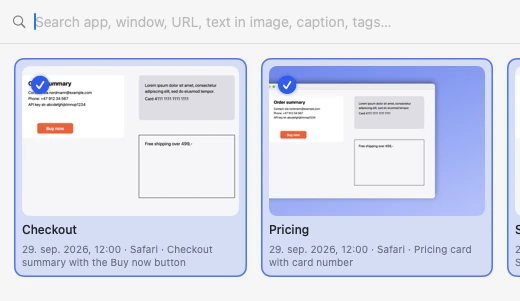
Search History in Zinxo
- Press ⌘⇧5 to open History.
- Type what you remember seeing: an error message, a customer name, a number, a URL.
- Results match the recognised text, caption, tags, app, window title and URL of each capture.
- Hover a card to Annotate, Add background, Copy or Show in Finder; select several to Combine.
Copy text straight from the screen
⌥⇧T captures an area and copies its text (OCR). Text recognition uses Apple’s Vision framework on your Mac (English, Norwegian, Swedish and Danish), so nothing is uploaded.
Let your AI agent search too
Through the built-in MCP server, Claude Code or Cursor can call search_screenshots("checkout error") and read the matching image, so you can ask “find the screenshot of the 502 from Tuesday and compare it with the page now”.
claude mcp add --scope user zinxo -- ~/Applications/Zinxo.app/Contents/MacOS/Zinxo mcpZinxo: $29 once (regular $39), 1 Mac, 1 year of updatesCapture, hand-drawn markup, 3D mockups, scrolling capture, recording to MP4 or GIF, OCR search and agent handoff in one native Mac app. One price, no subscription.
Related guides
- How to copy text from an image or screenshot on Mac (OCR)
- Give your AI agent eyes: screenshots over MCP