Turn a screenshot into a Jira ticket in 10 seconds
The fastest way to turn a screenshot into a Jira or Linear ticket is to mark the problem with numbered steps, then let an AI draft the title and description from the image. In Zinxo, ⌥⇧J captures an area and drafts the issue for you to edit, then Copy as text, Open in Linear, or Create in Jira; nothing is created before you click.
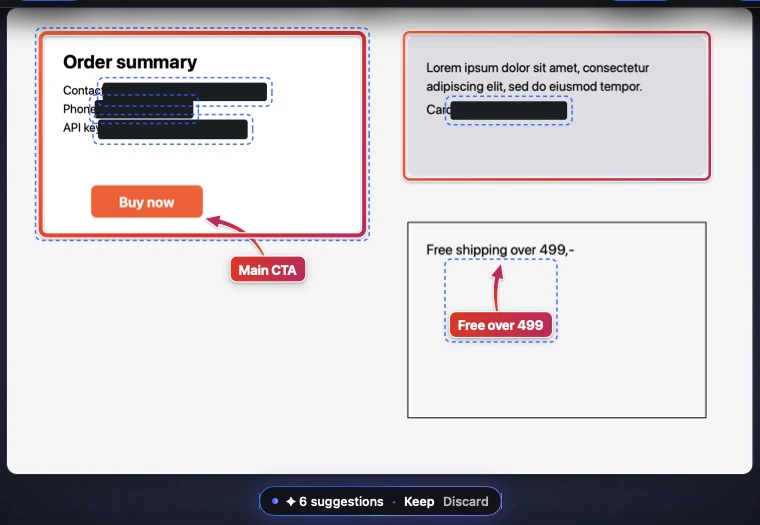
A good bug report has a clear title, steps to reproduce, expected vs actual, impact and a screenshot with the problem marked. Writing that by hand takes minutes. Most of it is already visible in the screenshot.
The manual way (still worth knowing)
- Capture only the relevant area.
- Mark the problem: one arrow, one box. Numbered markers if there are steps.
- Title = symptom + where + when: “Payment 502 dropped checkout conversion (14:02–14:40)”.
- Put the steps in the order of your numbered markers.
- Add impact in numbers if the screenshot shows them.
With Zinxo
- Connect a Smart AI once (Settings → AI): Claude Code on this Mac, your own API key, or a local model.
- Press ⌥⇧J and select the area. The AI drafts a title and description you can edit.
- Copy as text for any tracker, or Open in Linear (prefilled, with the screenshot on the clipboard to paste).
- Create in Jira works when you’ve allowed Claude Code on this Mac with your Atlassian connector. Nothing is sent before you press a button.
Why numbered markers matter
Numbered steps on the image (press N in the editor) are the single best way to make a ticket reproducible. They map one-to-one to “steps to reproduce”, so the ticket and the image tell the same story.
Zinxo: $29 once (regular $39), 1 Mac, 1 year of updatesCapture, hand-drawn markup, 3D mockups, scrolling capture, recording to MP4 or GIF, OCR search and agent handoff in one native Mac app. One price, no subscription.